
How to Add Clickable Buttons with CTA to Pinned Telegram Channel Messages
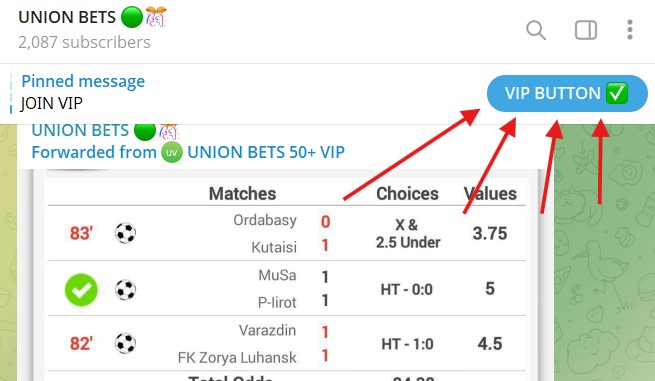
Looking to increase conversions for your channel? You can actually put a button in a pinned message which will be visible from anywhere in your channel!
Pinned messages in a Telegram channel are prime real estate. They stick to the top, grabbing every new visitor's attention. But are you making the most of them? A simple link in a text message is good, but a message that sticks to the top of every user's screen with a bold, clickable Call-to-Action (CTA) button is a game-changer for driving traffic and engagement.
How do you add a CTA button to a Telegram message and pin it?
The easiest way is to create a bot that helps you create formatted posts. A popular choice for this is @ControllerBot. You connect it to your channel, use its interface to compose a message, and add URL buttons with custom text. Once the post is published in your channel, you can simply pin it like any other message. This is a great free method for basic buttons.
And if you are growing your channel with Facebook (Meta ads) - you can improve conversion even further with a profesional tracking software, like TG Tracker.
Our platform tracks who exactly joined your VIP Channel, or messaged you through the pinned button and we send that data to Meta/Facebook. Then, Meta AI can optimize to find similar users, reducing your cost per deposit/contact by up to 50%.
The Simple Method: Using @ControllerBot
Let's walk through creating a post with a button using @ControllerBot. It's a straightforward process that gives your channel posts a more professional feel.
Connect @ControllerBot to Your Channel:
- First, find @ControllerBot on Telegram and start a chat with it.
- Send the
/addchannelcommand. - The bot will ask you to create your own bot in @BotFather
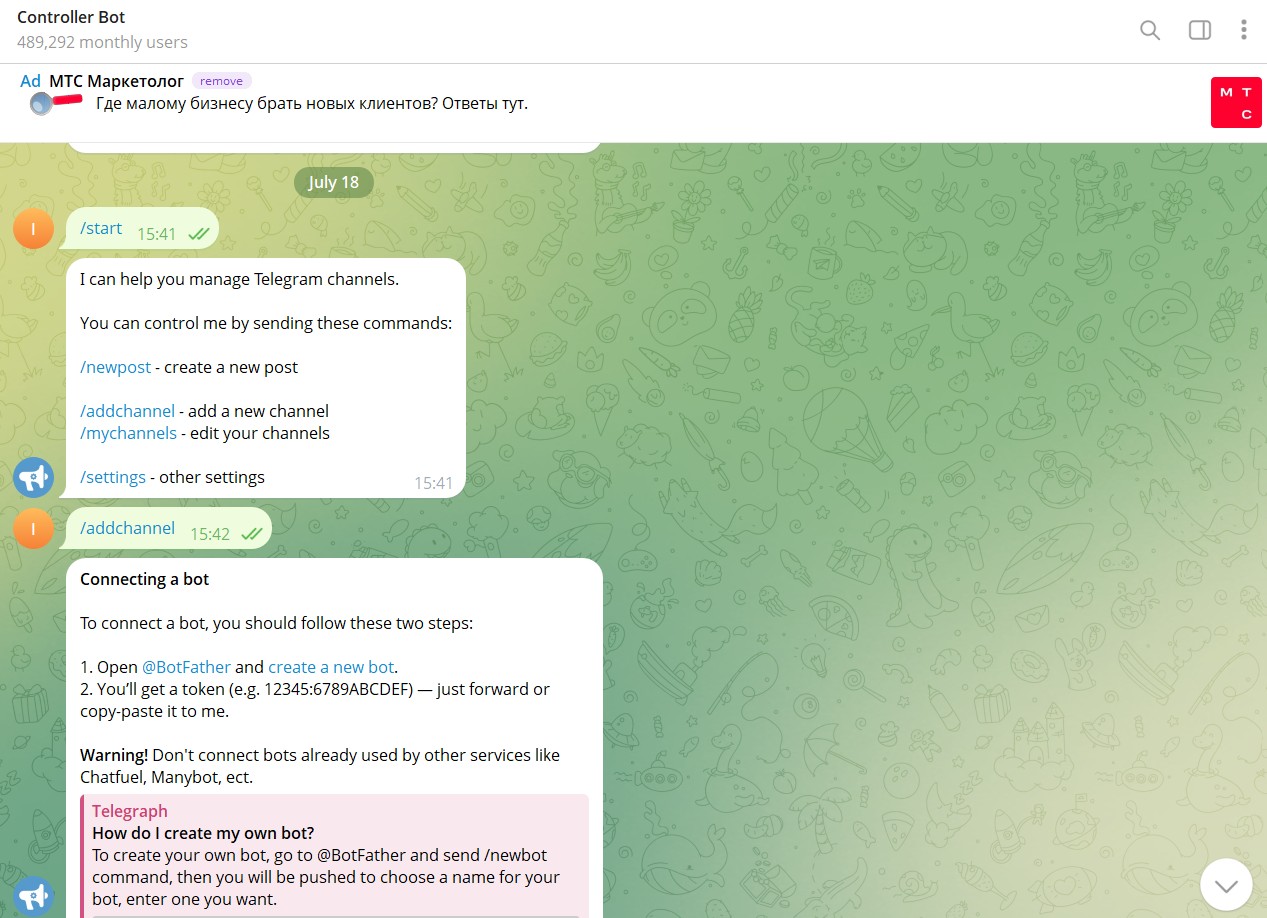 This screenshot shows how to start a chat with Controller Bot and type
 /addchannel to begin connecting your channel.
Create your @BotFather bot
- Navigate to @BotFather
- Start it, and then send the
/newbotcommand - Enter any username, and any name (your subscribers wont see them)
- Copy the API key of the bot, as in the screenshot below.
- Go back to @ControllerBot, and paste the API key into the chat.
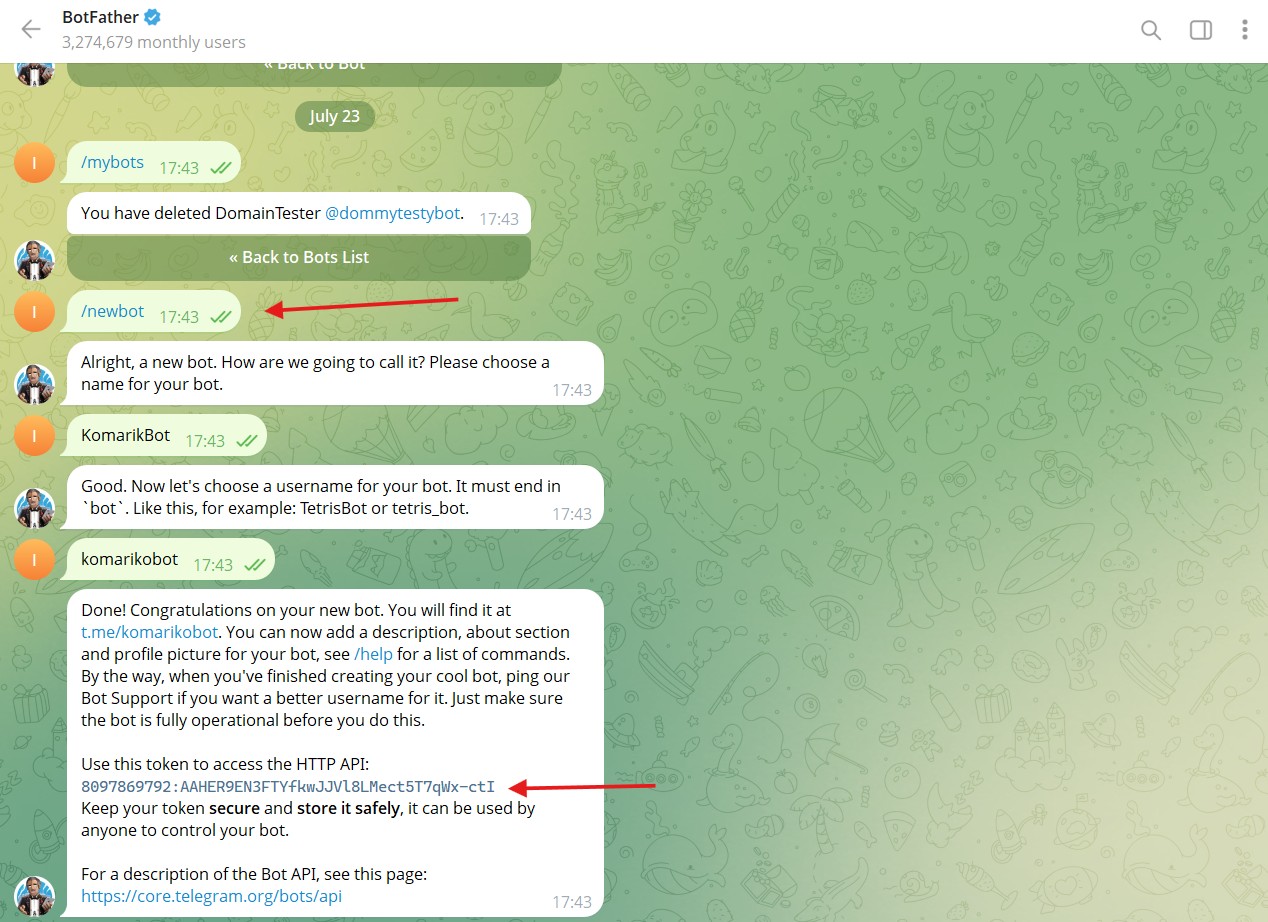 Creating a new bot in @BotFather.
Adding the bot to the channel
- After @ControllerBot confirms that the API key you entered is correct, it will ask you to add the bot as admin to your channel
- Add it as an admin to your channel by
- On Mobile: open your channel by clicking the icon, click
Administrators, then clickAdd Adminand type the username of the bot you created in the previous step - On desktop: click three dots on top right of channel,
Manage Channel,Administrators,Add Administratorand type the username of the bot you created in the previous step - Then, forward any post from your channel to the @ControllerBot
- Your setup is complete! Time to create the pinned post with the button.
Create Your First Post:
- Open the bot you created, by searching the username of the bot you created in the second step
- Type
/start. A menu will appear to manage your channel. Select theCreate Postbutton. Choose the channel where you want the post in the next message. - Then, type the message text into the chat with your bot, e.g.
To make an order, click the button 👉 - A menu will appear. Select
Add URL Buttons. It will prompt you to enter your buttons in the format:Button text 1 - http://www.example.com/ | Button text 2 - http://www.example2.com/ - So for instance, you can type:
Make an Order 🔥 - https://t.me/your_username - Click
Sendfrom the buttons on your keyboard, or typeSendinto your chat, and select to send your post now.
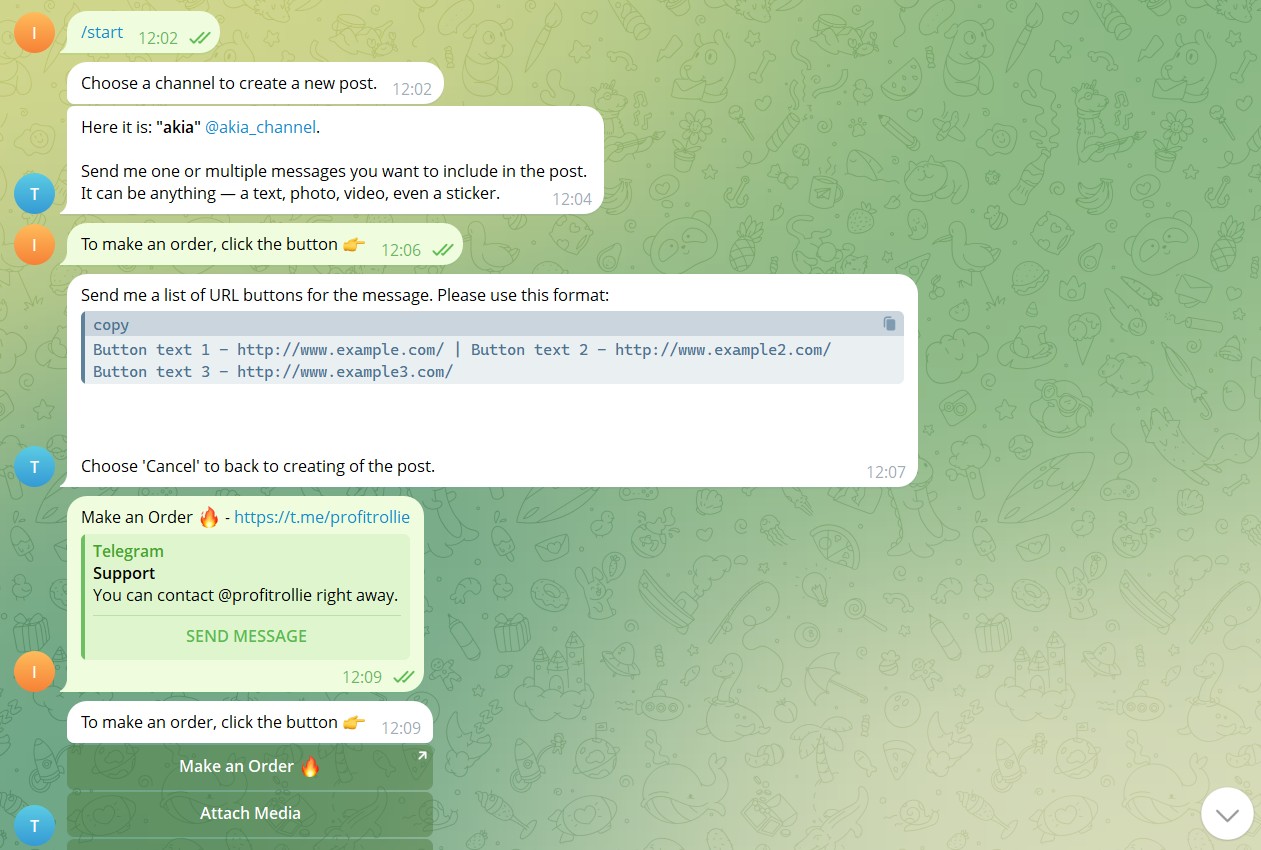
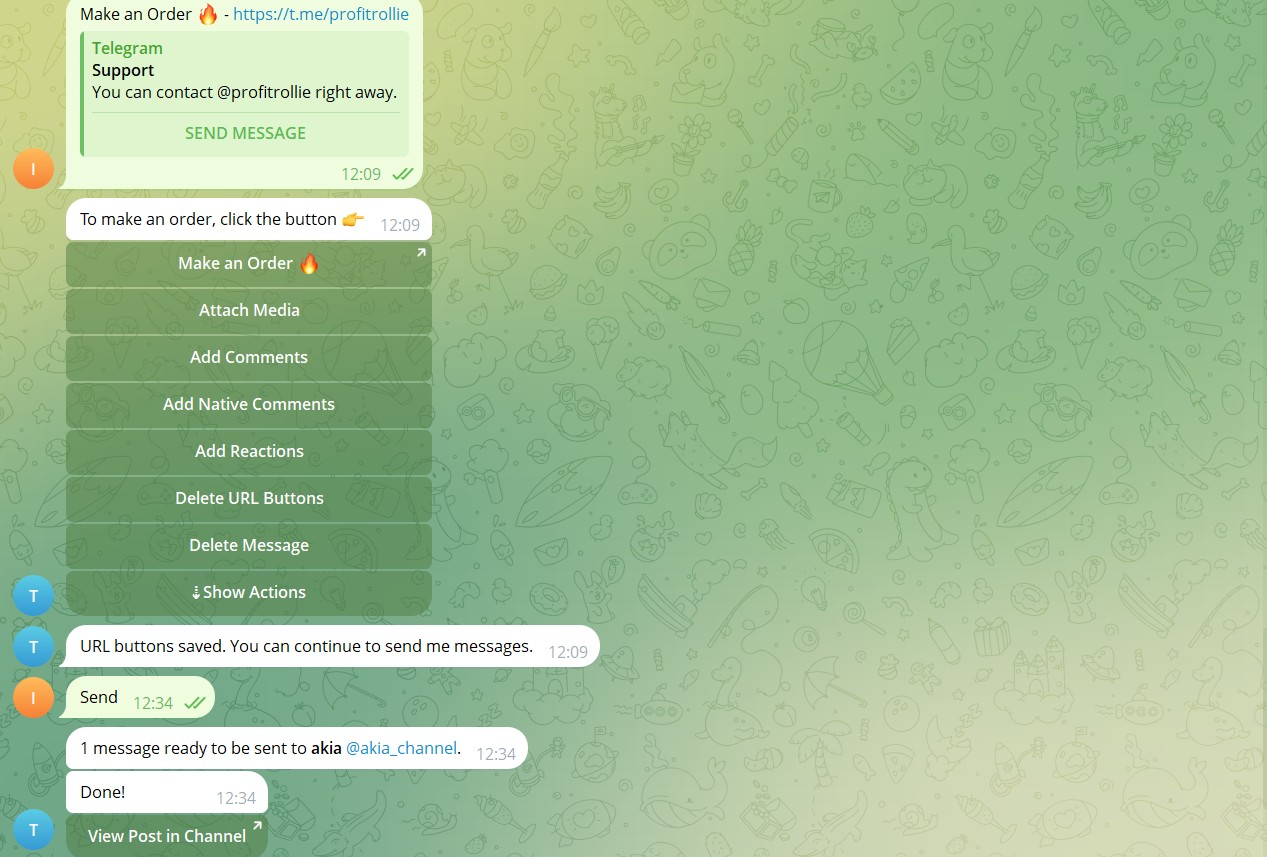 Creating you first post with @ControllerBot
Pinning your post
- Now all that's left is to pin your post.
- All done!
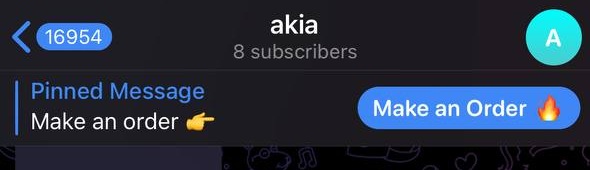 Now all your users will be able to see and click your call to action from anywhere in your channel.
The Marketer's Dilemma: The Limits of Simple Buttons
Using @ControllerBot is fantastic for community managers and general use. But for a performance marketer, it's like driving with your eyes closed. You see that you have a button, but you have no idea how many people are clicking it, where they came from, or if those clicks are leading to sales. You can't answer critical questions like:
- Did my latest Facebook Ad campaign lead to more clicks on my pinned message?
- Which of my button variations performs better?
- What is the actual ROI of my Telegram channel engagement efforts?
And most importantly, if you launch Meta ads, Facebook doesn't see who clicked your button, or who messaged you! You are missing out on the most crucial part of Meta Ads - conversion optimization.
The Pro Solution: Tracking Clicks with TG Tracker
This is exactly the problem TG Tracker was built to solve. We bridge the gap between your marketing efforts and the actions users take on Telegram.
Instead of using a plain t.me link in your button, you would create a trackable link inside TG Tracker. When a user clicks this link in your pinned channel message, our system instantly captures it. More importantly, if that user came from a Facebook Ad, we connect that click back to the specific ad campaign using the Facebook Conversions API (CAPI).
With TG Tracker, you can:
- Attribute Clicks to Ads: Know exactly which Facebook or Meta ads are driving users to click your CTA buttons.
- Send CAPI Events: For DMs - Automatically fire the
Contactevent when a user messages you. For VIP Channels - Automatically fire thePurchaseevent when people join. This feeds Facebook's algorithm the data it needs to optimize your campaigns for what matters. - Analyze Performance: Our dashboard gives you a clear view of your click-through rates and campaign performance, allowing you to make data-driven decisions instead of guessing.